Jul 21, 2026News & Insights
How to Set Up and Pair Your Magic Keyboard
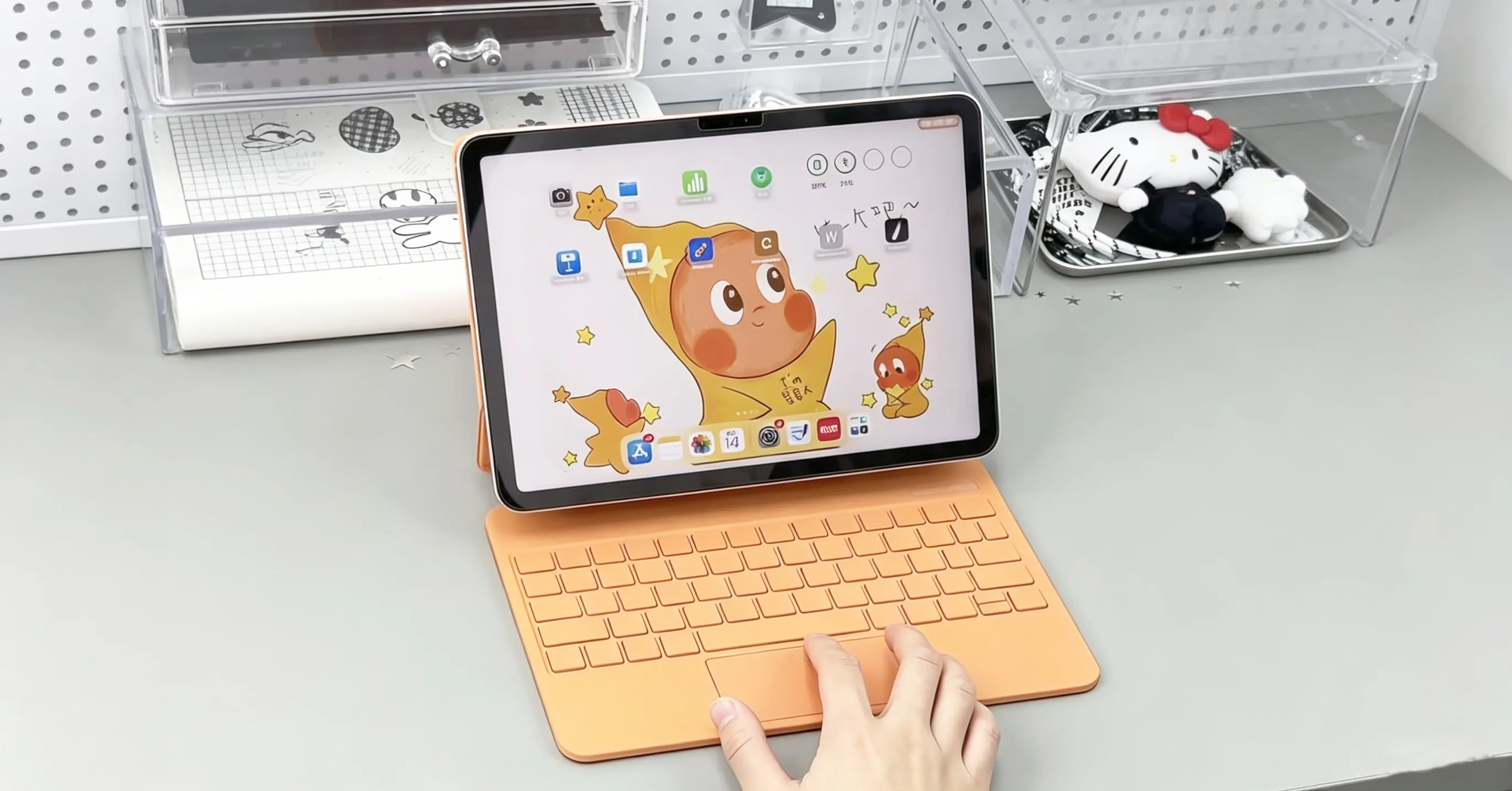
How to Set Up and Pair Your Magic Keyboard
- Place your iPad on the magnetic stand, making sure the camera aligns perfectly with the cutout on the case.
- Turn on the keyboard by flipping the power switch.
- Press and hold the Bluetooth pairing button for about three seconds – the pairing indicator will start flashing.
- Open Settings on your iPad and go to Bluetooth. Make sure Bluetooth is turned ON and your iPad is searching for devices.
- Under “Other Devices”, you should see “Wireless Keyboard” – tap on it to connect.
- Once paired, the flashing light will turn off, and your Magic Keyboard is ready to use.
Customising Your Trackpad for a Better Experience
After you receive your Magic Keyboard, the first thing you should do is head to Settings > Trackpad and turn on “Tap to Click”. This lets you tap lightly instead of pressing down hard on the trackpad – a real time‑saver. While you’re there, adjust the tracking speed to your personal preference so everything feels smooth and responsive.
For even finer control, go to Settings > Accessibility > Pointer Control. Here you can tweak the pointer’s appearance – change the size, colour, or even the thickness of the circle around it.
Essential Gestures You’ll Use Every Day
- Top‑right corner swipe – opens Control Center.
- Swipe up from the bottom edge and pause – brings up the Dock.
- Double‑tap on text – selects a single word.
- Triple‑tap on text – selects the entire paragraph.
- Select a word, then hold Shift and use the arrow keys to extend the selection to nearby text.
- Two‑finger vertical swipe – scrolls up and down a page.
- Two‑finger horizontal swipe – goes forward or backward (e.g. in Safari or other apps).
- Two‑finger diagonal pinch – zooms in and out; also works to enter or exit full‑screen mode when watching videos.
- Three‑finger left/right swipe – quickly switches between your most recently used apps.
- Three‑finger upward swipe – returns you to the Home Screen.
Keyboard Shortcuts to Boost Your Productivity
- Cmd + C – Copy
- Cmd + V – Paste
- Cmd + X – Cut
- Cmd + Z – Undo
- Shift + Cmd + 3 (or 4) – Take a screenshot
- Cmd + Tab – Quickly switch between open apps
- In Safari: Shift + Cmd + [ or ] – Switch between tabs
- Globe key – Switch input language (if you have multiple keyboards enabled)
Pro tip: Different apps have their own unique shortcuts. Just press and hold the Cmd key for a few seconds – a pop‑up will show you all available shortcuts for the app you’re currently using.
Charging Your Magic Keyboard
Your Magic Keyboard comes with a Type‑C port built into its hinge. Simply plug your iPad charger into that port – it will charge your iPad directly, leaving the iPad’s own port free for other accessories.
Style and Backlighting
The Magic Keyboard features 7‑colour adjustable backlighting, so you can work comfortably in any lighting condition. Plus, it’s available in a variety of colours to match your personal style – it looks as good as it performs.
Feel free to use the title and translation as they are, or mix and match sections to suit your store’s tone. If you need a shorter version for a product description or a more technical version for a spec sheet, just let me know and I’ll adapt it.